To make a bicep heart AI video, upload one clear waist-up photo of one adult to a bicep heart generator. The tool animates a flexed arm and brings the other hand across to form a heart against the bicep. Download the vertical MP4 and check the hands and heart shape before posting.
What does the bicep heart pose look like?
The bicep heart is a one-person pose. Bend one arm into a flex with the fist near your temple. Bring your other hand across your chest and curl it against the top of the flexed upper arm. The heart is the small gap framed by the curved hand and bent arm. In the video version, you see the flex, the hand moving into position and a short hold where the heart becomes readable.
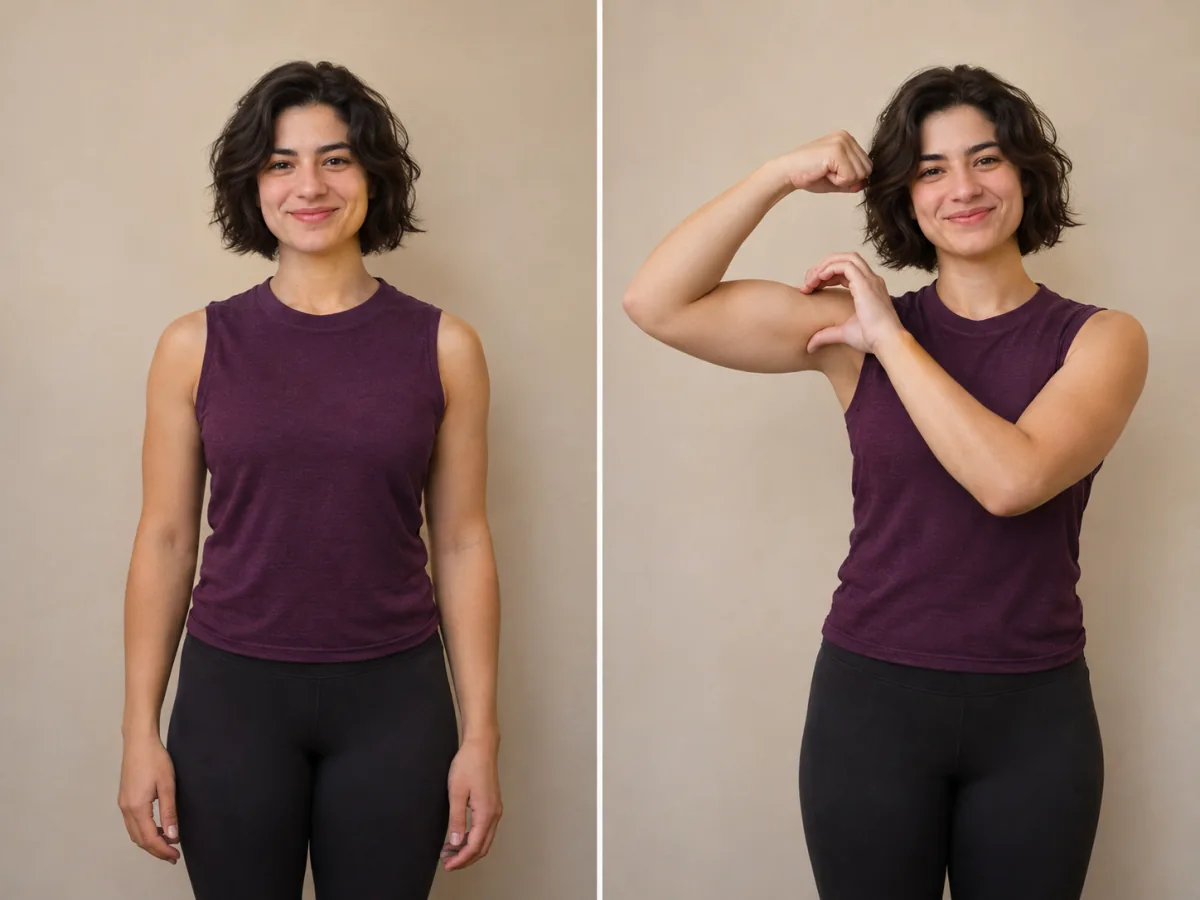
AI-generated illustration of the source framing and finished pose.
How to make the bicep heart video
1. Pick a photo with room for both arms
Start with a sharp, front-facing portrait in even light. Frame it from the waist up, with both shoulders, elbows and hands visible and a little space on each side. A short-sleeved or sleeveless top makes the elbow and upper arm easier to see. A straight-on phone photo by a window works well. If your usual selfie cuts off the shoulders, step back and take a fresh picture.
Use your own photo or get clear permission from the adult pictured. Ask separately before sharing their finished clip. If you are making this as a couple, start with one photo per person and edit the two clips together after rendering.
2. Upload the photo and choose your settings
Upload your portrait to Bicep Heart AI or Bicep Heart Trend AI. Both tools animate the bicep heart pose from one photo.
Choose 480p or 720p and check the credit total on the render button. Pick Silent if you plan to add a sound when you post.
| Generator | Output | Credits per render |
|---|---|---|
| Bicep Heart AI | Vertical 9:16 MP4, about 7 seconds, with trend audio or a silent export | 6 at 480p, 13 at 720p |
| Bicep Heart Trend AI | Vertical 9:16 MP4, with a trend-audio toggle in the maker | 6 at 480p, 15 at 720p |
These are our two Bicep Heart sites. On November 9, 2026, both listed a $5.99 pack that covers one 480p clip. Check the maker before you pay, especially for HD. Choose 480p for a lower-cost first render if your priority is checking the motion. Higher resolution adds detail, so use the pause check below at either setting.
3. Pause on the heart, then watch the whole clip
Scrub to the first frame where the hand settles on the bicep. Check that the wrist bends naturally and that you can see the small gap that reads as a heart. Then play the clip at normal speed. Watch the face through the reach and check that the elbow stays inside the frame. Download the MP4 once the gesture is clear both paused and in motion.
4. Preview the post on your phone
Keep the 9:16 frame and place any text away from the flexed arm. If you exported a silent clip, use a sound your account is allowed to use and preview it with the video before posting. TikTok requires a label for realistic AI-generated video. For a video upload, the label is under More options on the posting screen. TikTok’s AI-generated content guide
How to fix a bicep heart that looks wrong
| What you see | What to change before you rerender |
|---|---|
| The elbow goes out of frame during the flex | Start with a wider waist-up shot and leave space between the arms and both edges. |
| The fingers blend into the arm or sleeve | Use a sharper photo in even light, with short sleeves and the hands separated from the torso. |
| The face changes as the arm lifts | Try a front-facing photo with the eyes clearly visible and even lighting on both sides of the face. |
| The model makes a finger heart in front of the chest | Use the dedicated bicep heart preset. In a prompt-based tool, describe which arm flexes and where the opposite hand lands. |
When retrying, change the photo or motion instruction that matches the visible problem. Review the same moment in the new clip so you can tell whether the change helped.
Can you use a prompt or film it yourself?
The two preset generators above already define the motion. If you are using a general image-to-video tool that accepts a photo and a motion prompt, try this direction and adapt it to the space around your subject.
Keep a fixed, waist-up camera. The person slowly raises their right forearm into a flex with the fist beside their temple. Their left hand reaches across their chest and curls against the top of the flexed bicep, leaving a small heart-shaped gap. Hold the pose briefly. Keep the face, outfit and background consistent, with both elbows visible throughout.
You can also film the pose for free. Prop your phone upright at chest height, step back until both elbows fit, and record the flex followed by the reach. Hold the finished heart for two seconds so viewers have time to see the shape. Trim the clip after the hold.
Frequently asked questions
Do I need to pose in the source photo?
A relaxed waist-up portrait is enough for the preset generators. They animate the arm lift and reach from the still photo. Frame both arms clearly so there is room for the movement.
Is a bicep heart AI video free?
Both linked generators charge credits for a video render. You can film the same pose on your phone for free. A still preview can help you judge the shape, while the MP4 shows the full movement into the pose.
Can two people make the heart in one render?
The linked presets are built around one adult per clip. For a paired post, give each person their own clip, then place them side by side or cut from one finished heart to the next.
Do you need large biceps for the trend?
Any arm size can work. The shape comes from where the reaching hand curves against the flexed arm. If you are filming, turn the elbow slightly toward the camera and adjust the hand until the gap is visible on screen.
For another trend built from a single photo, see the Popstar AI video tutorial.